Showing posts with label computer tricks. Show all posts

A History of Computer Programming Languages

Tuesday, 24 February 2015

A History of Computer Programming Languages

Ever since the invention of Charles Babbage’s difference engine in 1822, computers have required a means of instructing them to perform a specific task. This means is known as a programming language. Computer languages were first composed of a series of steps to wire a particular program; these morphed into a series of steps keyed into the computer and then executed; later these languages acquired advanced features such as logical branching and object orientation. The computer languages of the last fifty years have come in two stages, the first major languages and the second major languages, which are in use today.
In the beginning, Charles Babbage’s difference engine could only be made to execute tasks by changing the gears which executed the calculations. Thus, the earliest form of a computer language was physical motion. Eventually, physical motion was replaced by electrical signals when the US Government built the ENIAC in 1942. It followed many of the same principles of Babbage’s engine and hence, could only be “programmed” by presetting switches and rewiring the entire system for each new “program” or calculation. This process proved to be very tedious.
In 1945, John Von Neumann was working at the Institute for Advanced Study. He developed two important concepts that directly affected the path of computer programming languages. The first was known as “shared-program technique” (www.softlord.com). This technique stated that the actual computer hardware should be simple and not need to be hand-wired for each program. Instead, complex instructions should be used to control the simple hardware, allowing it to be reprogrammed much faster.
The second concept was also extremely important to the development of programming languages. Von Neumann called it “conditional control transfer” (www.softlord.com). This idea gave rise to the notion of subroutines, or small blocks of code that could be jumped to in any order, instead of a single set of chronologically ordered steps for the computer to take. The second part of the idea stated that computer code should be able to branch based on logical statements such as IF (expression) THEN, and looped such as with a FOR statement. “Conditional control transfer” gave rise to the idea of “libraries,” which are blocks of code that can be reused over and over. (Updated Aug 1 2004: Around this time, Konrad Zuse, a German, was inventing his own computing systems independently and developed many of the same concepts, both in his machines and in the Plankalkul programming language. Alas, his work did not become widely known until much later. For more information, see this website: http://www.epemag.com/zuse/, or the entries on Wikipedia: Konrad Zuse and Plankalkul.)
In 1949, a few years after Von Neumann’s work, the language Short Code appeared (www.byte.com). It was the first computer language for electronic devices and it required the programmer to change its statements into 0’s and 1’s by hand. Still, it was the first step towards the complex languages of today. In 1951, Grace Hopper wrote the first compiler, A-0 (www.byte.com). A compiler is a program that turns the language’s statements into 0’s and 1’s for the computer to understand. This lead to faster programming, as the programmer no longer had to do the work by hand.
In 1957, the first of the major languages appeared in the form of FORTRAN. Its name stands for FORmula TRANslating system. The language was designed at IBM for scientific computing. The components were very simple, and provided the programmer with low-level access to the computers innards. Today, this language would be considered restrictive as it only included IF, DO, and GOTO statements, but at the time, these commands were a big step forward. The basic types of data in use today got their start in FORTRAN, these included logical variables (TRUE or FALSE), and integer, real, and double-precision numbers.
Though FORTAN was good at handling numbers, it was not so good at handling input and output, which mattered most to business computing. Business computing started to take off in 1959, and because of this, COBOL was developed. It was designed from the ground up as the language for businessmen. Its only data types were numbers and strings of text. It also allowed for these to be grouped into arrays and records, so that data could be tracked and organized better. It is interesting to note that a COBOL program is built in a way similar to an essay, with four or five major sections that build into an elegant whole. COBOL statements also have a very English-like grammar, making it quite easy to learn. All of these features were designed to make it easier for the average business to learn and adopt it.
(Updated Aug 11 2004) In 1958, John McCarthy of MIT created the LISt Processing (or LISP) language. It was designed for Artificial Intelligence (AI) research. Because it was designed for a specialized field, the original release of LISP had a unique syntax: essentially none. Programmers wrote code in parse trees, which are usually a compiler-generated intermediary between higher syntax (such as in C or Java) and lower-level code. Another obvious difference between this language (in original form) and other languages is that the basic and only type of data is the list; in the mid-1960’s, LISP acquired other data types. A LISP list is denoted by a sequence of items enclosed by parentheses. LISP programs themselves are written as a set of lists, so that LISP has the unique ability to modify itself, and hence grow on its own. The LISP syntax was known as “Cambridge Polish,” as it was very different from standard Boolean logic (Wexelblat, 177):
  • x V y - Cambridge Polish, what was used to describe the LISP program
  • OR(x,y) - parenthesized prefix notation, what was used in the LISP program
  • x OR y - standard Boolean logic
LISP remains in use today because its highly specialized and abstract nature.
The Algol language was created by a committee for scientific use in 1958. It’s major contribution is being the root of the tree that has led to such languages as Pascal, C, C++, and Java. It was also the first language with a formal grammar, known as Backus-Naar Form or BNF (McGraw-Hill Encyclopedia of Science and Technology, 454). Though Algol implemented some novel concepts, such as recursive calling of functions, the next version of the language, Algol 68, became bloated and difficult to use (www.byte.com). This lead to the adoption of smaller and more compact languages, such as Pascal.
Pascal was begun in 1968 by Niklaus Wirth. Its development was mainly out of necessity for a good teaching tool. In the beginning, the language designers had no hopes for it to enjoy widespread adoption. Instead, they concentrated on developing good tools for teaching such as a debugger and editing system and support for common early microprocessor machines which were in use in teaching institutions.
Pascal was designed in a very orderly approach, it combined many of the best features of the languages in use at the time, COBOL, FORTRAN, and ALGOL. While doing so, many of the irregularities and oddball statements of these languages were cleaned up, which helped it gain users (Bergin, 100-101). The combination of features, input/output and solid mathematical features, made it a highly successful language. Pascal also improved the “pointer” data type, a very powerful feature of any language that implements it. It also added a CASE statement, that allowed instructions to to branch like a tree in such a manner:
CASE expression OF
possible-expression-value-1:
statements to execute...
possible-expression-value-2:
statements to execute...
END
Pascal also helped the development of dynamic variables, which could be created while a program was being run, through the NEW and DISPOSE commands. However, Pascal did not implement dynamic arrays, or groups of variables, which proved to be needed and led to its downfall (Bergin, 101-102). Wirth later created a successor to Pascal, Modula-2, but by the time it appeared, C was gaining popularity and users at a rapid pace.
C was developed in 1972 by Dennis Ritchie while working at Bell Labs in New Jersey. The transition in usage from the first major languages to the major languages of today occurred with the transition between Pascal and C. Its direct ancestors are B and BCPL, but its similarities to Pascal are quite obvious. All of the features of Pascal, including the new ones such as the CASE statement are available in C. C uses pointers extensively and was built to be fast and powerful at the expense of being hard to read. But because it fixed most of the mistakes Pascal had, it won over former-Pascal users quite rapidly.
Ritchie developed C for the new Unix system being created at the same time. Because of this, C and Unix go hand in hand. Unix gives C such advanced features as dynamic variables, multitasking, interrupt handling, forking, and strong, low-level, input-output. Because of this, C is very commonly used to program operating systems such as Unix, Windows, the MacOS, and Linux.
In the late 1970’s and early 1980’s, a new programing method was being developed. It was known as Object Oriented Programming, or OOP. Objects are pieces of data that can be packaged and manipulated by the programmer. Bjarne Stroustroup liked this method and developed extensions to C known as “C With Classes.” This set of extensions developed into the full-featured language C++, which was released in 1983.
C++ was designed to organize the raw power of C using OOP, but maintain the speed of C and be able to run on many different types of computers. C++ is most often used in simulations, such as games. C++ provides an elegant way to track and manipulate hundreds of instances of people in elevators, or armies filled with different types of soldiers. It is the language of choice in today’s AP Computer Science courses.
In the early 1990’s, interactive TV was the technology of the future. Sun Microsystems decided that interactive TV needed a special, portable (can run on many types of machines), language. This language eventually became Java. In 1994, the Java project team changed their focus to the web, which was becoming “the cool thing” after interactive TV failed. The next year, Netscape licensed Java for use in their internet browser, Navigator. At this point, Java became the language of the future and several companies announced applications which would be written in Java, none of which came into use.
Though Java has very lofty goals and is a text-book example of a good language, it may be the “language that wasn’t.” It has serious optimization problems, meaning that programs written in it run very slowly. And Sun has hurt Java’s acceptance by engaging in political battles over it with Microsoft. But Java may wind up as the instructional language of tomorrow as it is truly object-oriented and implements advanced techniques such as true portability of code and garbage collection.
Visual Basic is often taught as a first programming language today as it is based on the BASIC language developed in 1964 by John Kemeny and Thomas Kurtz. BASIC is a very limited language and was designed for non-computer science people. Statements are chiefly run sequentially, but program control can change based on IF..THEN, and GOSUB statements which execute a certain block of code and then return to the original point in the program’s flow.
Microsoft has extended BASIC in its Visual Basic (VB) product. The heart of VB is the form, or blank window on which you drag and drop components such as menus, pictures, and slider bars. These items are known as “widgets.” Widgets have properties (such as its color) and events (such as clicks and double-clicks) and are central to building any user interface today in any language. VB is most often used today to create quick and simple interfaces to other Microsoft products such as Excel and Access without needing a lot of code, though it is possible to create full applications with it.
Perl has often been described as the “duct tape of the Internet,” because it is most often used as the engine for a web interface or in scripts that modify configuration files. It has very strong text matching functions which make it ideal for these tasks. Perl was developed by Larry Wall in 1987 because the Unix sed and awk tools (used for text manipulation) were no longer strong enough to support his needs. Depending on whom you ask, Perl stands for Practical Extraction and Reporting Language or Pathologically Eclectic Rubbish Lister.
Programming languages have been under development for years and will remain so for many years to come. They got their start with a list of steps to wire a computer to perform a task. These steps eventually found their way into software and began to acquire newer and better features. The first major languages were characterized by the simple fact that they were intended for one purpose and one purpose only, while the languages of today are differentiated by the way they are programmed in, as they can be used for almost any purpose. And perhaps the languages of tomorrow will be more natural with the invention of quantum and biological computers.

Bibliography

  • “A Brief History of Programming Languages.” http://www.byte.com/art/9509/se7/artl9.htm. Cited, March 25, 2000.
  • “A Short History of the Computer.” http://www.softlord.com/comp/. Jeremy Myers. Cited, March 25, 2000.
  • Bergin, Thomas J. and Richard G. Gibson, eds. History of Programming Languages-II. New York: ACM Press, 1996.
  • Christiansen, Tom and Nathan Torkington. Perlfaq1 Unix Manpage. Perl 5 Porters, 1997-1999.
  • Christiansen, Tom and Nathan Torkington. Perlhist Unix Manpage. Perl 5 Porters, 1997-1999.
  • “Java History.” http://ils.unc.edu/blaze/java/javahist.html. Cited, March 29, 2000.
  • “Programming Languages.” McGraw-Hill Encyclopedia of Science and Technology. New York: McGraw-Hill, 1997.
  • Wexelblat, Richard L., ed. History of Programming Languages. New York: Academic Press, 1981.
Read more ...

Make over 1,000 folders in few seconds

Thursday, 8 January 2015
Make over 1,000 folders in few seconds


Here I will teach you simple prank that will make an unlimited amount of folders in any place you want.

1. Open notepad and type :

@echo off
:top
md %random%
goto top 


@echo off makes it so that it appears to be a blank screen but actually its making hundreds of folder.
md %random% is command that creating folders with random names.
goto top – return to label :top, infinite loop


2. Save it as 1000folders.bat


3. After that you will get icon that looks as show below


People probably not going to click on an icon that looks like this picture so to make it better (funnier and easier to prank people with) make a short-cut to it

4. Right click on icon and click Create Shortcut


5. Right click on shortcut and click properties , then click on Change Icon and rename icon


Tell the person that you found the music they wanted and downloaded it on there computer, that way they will think its a shortcut to the music and they will click on it then they will think its loading so they wont exit right away when they finally realize its not going to load or so many errors have came up they realized somethings wrong it will be to late) also just something to know its impossible to delete them using cmd you HAVE to find all of them and delete them manually… 
Read more ...

Hide Drives and Partitions

Thursday, 8 January 2015

Hide Drives and Partitions


Do you have data on a partition or hard drive that you don't want tampered with or easily accessible to other users? Well, you can hide any drive/partition in Windows XP, NT, and 2000. That means that they won't show up in Explorer or My Computer.

If you want access to that drive from your user account you should create a desktop shortcut before proceeding. Once hidden, you can still access by typing the drive letter and a colon in Start/Run—for example, "D:" will bring up a folder of the contents on your D drive.

The easiest way with Win XP is to use the TweakUI power toy from Mcft. Go to Start/Run and type in "tweakui" (without the quotes).

Go to My Computer/Drives and uncheck the drive/partition(s) you want hidden. Click "Apply" or "OK" when finished.

If you have XP but not Tweak UI you can download it here...
http://www.Mcft.com/windowsxp/downloads/powertoys/xppowertoys.mspx

For Win NT, 2000, and XP you can use the following Registry edit:

*Be sure to back up the Registry before proceeding
http://www.worldstart.com/tips/tips.php/401

Open the Registry Editor by going to Start/Run and typing in "regedit" (without the quotes). Find your way to...

HKEY_CURRENT_USER\Software\Mcft\Windows\CurrentVersion\Policies

Click on "Explorer".

Double-click the "NoDrives" key in the right column. If you don't find a "NoDrives" registry key, just right-click in the right pane and choose "New/DWORD Value" then name the key "NoDrives".

You'll see a value like "0000 00 00 00 00". This is where the fun starts. The four sets of double zeros (after the "0000") are where you'll enter the values for the drive/partitions. Now, stay with me on this—it's not as complicated as it sounds:

The first column is for drives A-H, the second for I-P, the third for Q-X, and the fourth for Y-Z.

The values for each drive are as follows:

1 - A I Q Y
2 - B J R Z
4 - C K S
8 - D L T
16 - E M U
32 - F N V
64 - G O W
80 - H P X

So, let's say you want to hide drive D. In the first column you would put "08". For drive K you would put "04" in the second column.

But what if you want to hide more than one drive in a column? Simply add the values together: D+E = 8+16 = 24. So in the first column you would put "24".

Still baffled? If you have XP then go get TweakUI and save yourself the math.

Whichever method you use, you can rest easy knowing that the files on that drive or partition are less accessible to other users. 


Read more ...

Document or Web Page to PDF

Thursday, 8 January 2015

Convert Any Document or Web Page to PDF

Somebody just told you that you need to have Adobe Acrobat (Writer) to create a PDF file? Guess what, you can get away from that pricey piece of software if you just need to convert some documents to pdf, without a need of fancy editing the pdf document. 
Here's how. Thanks to the BullZip, who provides a Free Pdf printer. With this free tool, you can simply "print out" your document or webpage to a pdf file, just about the same way as you print it out to a printer.

You can visit BullZip.com for more information about the software. 
Here the direct link to BullZip downloads page: Downloads 

  1. To get started, first follow the link above and download Free Pdf Printer from BullZip, then install it to your computer.
  2. Once you're done, you might need to close the program (or the web browser) which you're currently viewing the document. This helps refreshing the list of available printers on your computer.
  3. Once you get back to the document you want to convert, perform the same steps are you print out the document, i.e. File > Print ...
  4. When you see the Print window pop-up, select "Bullzip PDF Printer" under "Printers", then click "OK".
  5. BullZip PDF Printer will then start to analyze your document and display a new pop-up window, where you can direct it to the location you want to save the pdf file.
  6. Follow the pop-up windows and.. hola! The PDF document is created! 


BY :  USTAAD HACKER
Read more ...

Windows e-mail shortcut

Thursday, 8 January 2015

Create a Windows e-mail shortcut

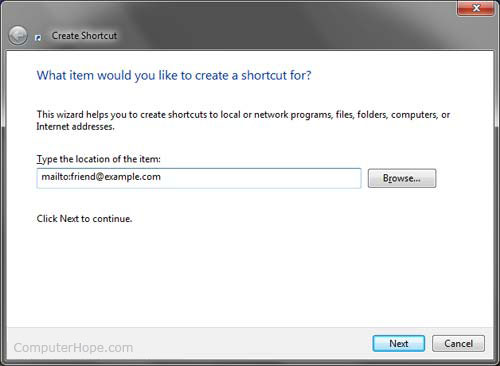
If you have a friend, family member, or co-work that you often e-mail creating an e-mail shortcut link on your Desktop or Taskbar can be a quick and easy way to e-mail them. To create an e-mail shortcut follow the below steps.
1. Right-click the Desktop or area you want to create the e-mail shortcut and select New and then Shortcut.
2. For the location or path to the shortcut enter mailto:friend@example.com where friend@example.com is the e-mail address you want to use in the shortcut.

Email Windows shortcut
3. Click Next and then type the name of the Shortcut and click Finish.
Now when this shortcut is clicked a new e-mail window will appear with that e-mail address already typed into the To field.

Tip: If you're running Microsoft Windows 7, you can also pin this shortcut to your Taskbar. If you already have your e-mail client pinned on the Taskbar right-clicking that icon will show your new pinned shortcut.


Read more ...

Breaking In Windows XP Password

Thursday, 8 January 2015

 Breaking In Windows XP Password


This post covers most of the ways of cracking windows XP users’ password. 

Method 1:
If you have an administrator account (Not Guest)
then the XP users’ passwords can be reset using command prompt.
Go to the task-bar and click on the Start button, then click on run and in the place given on dialog box type “command”, press enter.
Now In the Command prompt type “net user” 
the screen will display the list of users available on machine
suppose there are three administrator users with the name of admin1, admin2 and admin3

then the password of any user can be changed by logging into the account of any one administrator
for example if we want to change the password of admin1
then we can change it from the following command
net user admin1 password
similarly for other desired users
The general syntax is for changing password is
net user <user-name> <password>
Limitations: The above method will only work if you are logged in as the administrator user.
Method 2:
Windows Recovery option,
Boot from the Windows XP CD and press enter when you are prompted to Install Windows copy, on the next screen there is a repair existing Windows version. This method is also known as windows recovery method,
The repair option will take as much time as the installation would have taken because the Windows file-system is replaced including the SAM file where the password is stored.
C:WindowsSystem32configsam
whereas the users’ setting remain untouched.
Thus the users’ password is reset to NULL value.
#In repair mode you have another hole to modify the password.It is easier.The steps are as following.
Boot from xp bootable.After license agreement is done(pressing f8) select the target window for repair.
After file copy completed machine will restart.And repair process will start.You will see ‘installing devices’ 39 minutes left etc. at bottom left of your screen.
Now press Shift+f10.A console(command window) will open.
type nusrmgr.cpl and hit enter.This will let you to enter in the user account setting.Now change the password.You will not be asked for old password. Just type the new password there.
Continue the repair process.It is strongly recommended that you continue the repair until it is completed.
You are done, the password is replaced.The password strength does not matter in this case.

Method 3:
Boot your computer from a live Linux CD or DVD which has an NTFS/HPFS file-system support.
Then Mount the drive which has Windows copy installed on it. Copy the sam file on the location
C:WindowsSystem32configsam
Which will be mentioned as /media/disk-1/Windows/System32/config/sam
It is a common misconception that sam file can be viewed through normal text editor, sam file isnt a normal text file.
Gnome, KDE or vim text Editors won’t display the content of this file
Open the file using Emacs Editor (available in nearly all the distributions of Live Linux). It will be hard to find the the password hashes, so go for the user-names which are not encrypted, just after the user-names passwords’ hashes can be found out, copy the code between “%” sign and on the the Google search for the rainbow tables, They will provide the decrypted value which have already been brute-forced earlier. This is isn’t a sure shot method, as the rainbow project is still under development. The password can be set to NULL by deleting the content, but this might result in the corruption of the sam file, and recovery is the only option left after it.
Limitations: This Method can corrupt your SAM file, which may lead to a repair of Windows XP, and you can risk your personal data with that.
Method 4:
OPHcrack method.
This is a sure shot password recovery method based upon bruteforcing.
This Live CD is based upon the slax LiveCD v.5.1.7. It has been customized to include ophcrack 2.3.3 and the SSTIC04-10k tables set. It is able to crack 99.9%% of alphanumeric passwords. Since the tables have to be loaded into memory, cracking time varies with the amount of available RAM. The minimum amount of RAM required is 256MB (because the LiveCD uses a lot of it). The recommended amount is 512MB. Ophcrack will auto-detect the amout of free memory and adapts its behaviour to be able to preload all the tables it can.
A shell script launched at the beginning of the X session(Session for managing your desktop) does the job of finding the Windows partition and starting appropriate programs to extract and crack password hashes. It will look for all partitions that contains hashes. If more than one are found, you will have to choose between them.
If your partition is not detected, make sure your the partition containing the hashes you want to crack is mounted and the use ophcrack ‘Load from encrypted SAM’ function to recover your Windows hashes. Then click ‘Launch’ and the cracking process will start.
Download the ISO image of OPH crack Live Linux CD from sourceforge mirrors.
Another small application which resets the users’ password is available at here:


Read more ...

computer talk

Thursday, 8 January 2015

Make your computer talk what you type !

This is very good and interesting javascript trick which let your computer speaks whatever you type. There is no requirement of any software. Just follow below simple steps.


  • First open Notepad and copy below codes
     Dim message, sapi
message=InputBox(“What do you want me to say?”,”COOL HACKING TRICKS”)
Set sapi=CreateObject(“sapi.spvoice”)
sapi.Speak message
  • Now save the notepad file as talk.vbs
  • Now close the notepad file and open it again.
  • Done !!!


BY : USTAAD HACKER
Read more ...

Improve System Speed

Thursday, 8 January 2015

 Top Ten Tips To Improve System Speed

The below top ten tips are recommended for any system. It doesn’t matter if you have 256mb RAM or 2 GB RAM. Check the below tips to remove the memory junk and speedup windows os.

1. Let your PC boot up completely before opening any applications.

2. Refresh the desktop after closing any application. This will remove any unused files from the RAM.
3. Do not set very large file size images as your wallpaper. Do not keep a wallpaper at all if your PC is low on RAM (less than 64 MB).
4. Do not clutter your Desktop with a lot of shortcuts. Each shortcut on the desktop uses up to 500 bytes of RAM
5. Empty the recycle bin regularly. The files are not really deleted from your hard drive until you empty the recycle bin.
6. Delete the temporary internet files regularly.
7. Defragment your hard drive once every two months. This will free up a lot of space on your hard drive and rearrange the files so that your applications run faster.
8. Always make two partitions in your hard drive. Install all large Softwares (like PSP, Photoshop, 3DS Max etc) in the second partition. Windows uses all the available empty space in C drive as virtual memory when your Computer RAM is full. Keep the C Drive as empty as possible.
9. When installing new Softwares disable the option of having a tray icon. The tray icons use up available RAM, and also slow down the booting of your PC. Also disable the option of starting the application automatically when the PC boots. You can disable these options later on also from the Tools or preferences menu in your application.
10. Protect your PC from dust. Dust causes the CPU cooling fan to jam and slow down thereby gradually heating your CPU and affecting the processing speed. Use compressed air to blow out any dust from the CPU. Never use vacuum.
RAM IS THE WORKING AREA (DESKTOP) OF THE CPU, KEEP IT AS EMPTY AND UNCLUTTERED AS POSSIBLE!


BY: USTAAD HACKER:
Read more ...

Compress 1GB File to 10MB

Thursday, 8 January 2015
KGB Archiver is free and open source software which compresses 1GB file to 10MB file.
Data compression utility of this software is based on PAQ6 algorithm which has AES-256 powerful encryption. KGB archiver works on both Windows and Linux operating system. Compression ratio of this software is very high. Due to high compression levels, time to compress a file goes high as the size of the file increases and compression ratio may vary depending on the format of the file.When a file is compressed with KGB Archiver it saves it with own extension and at the time of decompression it automatically recognizes the file format. The only limitation of KGB archiver is, decompressed file cannot be open or extract with other compression softwares. You can also choose any compression level (high, maximum, normal, low, very weak) to compress a file but the compression time  will vary according to your selected compression level.
Note: If you are compressing any file with KGB archiver and sending the comprssed file to your friends then he must have KBG archiver installed on his computer to decompress the file. 

System Requirements:

Due to high compression ratio of KGB archiver, you need to have a decent system hardware configuration
  • 256 MB RAM
  • 1.5 GHz Processor

Features of KGB Archiver

  • Supports native .kgb files and .zip files
  • AES-256 Encryption
  • Able to create self-extracting archives.
  • Multilanguage supports like Arabic, German, Greek, Japanese, Spanish many more.
  • Unicode is supported in both User Interface and File Systems.
  • An Explorer shell extension is available for the windows version.
  • Make Password protected compressed file.
Click Here To Download KGB Archiver
Note: This KBG Archiver software cannot compress video format files.


Read more ...

Delete administrator Password

Thursday, 8 January 2015

How to “Delete administrator Password” without any software

 Boot up with DOS and delete the sam.exe and sam.log files from Windows\system32\config in your hard drive. Now when you boot up in NT the password on your built-in administrator account which will be blank (i.e No password). This solution works only if your hard drive is FAT kind.
Method 2
Step 1. Put your hard disk of your computer in any other pc .
Step 2. Boot that computer and use your hard disk as a secondary hard disk (D’nt boot as primary hard disk ).
Step 3. Then open that drive in which the victim’s window(or your window) is installed.
Step 4. Go to location windows->system32->configStep 5. And delete SAM.exe and SAM.log
Step 6. Now remove hard disk and put in your computer.
Step 7. And boot your computer  


BY :  USTAAD HEACKER
Read more ...

Lock File(s) on Windows Without Using Any Software

Thursday, 8 January 2015

Lock File(s) on Windows Without Using Any Software


Lock File(s) on Windows Without Using Any Software

How many times have you wished of a software using which you can hide or lock files,  restricting its access to other unwanted users. Although there are various software available in market using which you can easily lock/hide files but, i personally dont trust them because most of them are bloatware or spyware. 
In this post i am going to share a simple yet powerful way of locking and hiding important files using a the following method. Follow the instructions to make you own Locker ( Without any software !! ) :

  • Open notepad.
  • Copy the following code in notepad file :
    cls @ECHO OFF title Folder Locker if EXIST "Control Panel.{21EC2020-3AEA-1069-A2DD-08002B30309D}" goto UNLOCK if NOT EXIST Locker goto MDLOCKER :CONFIRM echo Are you sure u want to Lock the folder(Y/N) set/p "cho=>" if %cho%==Y goto LOCK if %cho%==y goto LOCK if %cho%==n goto END if %cho%==N goto END echo Invalid choice. goto CONFIRM :LOCK ren Locker "Control Panel.{21EC2020-3AEA-1069-A2DD-08002B30309D}" attrib +h +s "Control Panel.{21EC2020-3AEA-1069-A2DD-08002B30309D}" echo Folder locked goto End :UNLOCK echo Enter password to Unlock folder set/p "pass=>" if NOT %pass%==YOUR PASSWORD HERE goto FAIL attrib -h -s "Control Panel.{21EC2020-3AEA-1069-A2DD-08002B30309D}" ren "Control Panel.{21EC2020-3AEA-1069-A2DD-08002B30309D}" Locker echo Folder Unlocked successfully goto End :FAIL echo Invalid password goto end :MDLOCKER md Locker echo Locker created successfully goto End :End
  • Change the “YOUR PASSWORD HERE” with your password.
  • Save it as batch file ( with extension .bat ) For eg. Locker.bat
  • Now you will see a batch file. Double click it to create a folder locker ( A new folder named Locker would be formed at the same location )
  • Thats it you have now created your own locker and that too without using any software !
  • Brings all the files you want to hide in the locker folder.
  • Double click the batch ( As created above ) file to lock the folder namely Locker.
notepad tricks
If you want to unlock your files, simple double click the batch file again and you would be prompted for password ( In DOS window ). Enter the password and enjoy access to the folder.
But don’t delete .bat file and loose your stuff…….


BY:  USTAAD HEACKER:
Read more ...

Create Folder "CON"

Thursday, 8 January 2015

How to Create Folder "CON"

Hi Guys, How are you? i hope you all are well. I was little bit busy that why can't post know i'm back with amazing and excite trick.

Ever tried to create a folder "CON" or "AUX" or "NUL".


Tried now???  - 

not working :)


Here you go, a simple method to  stop your anxiety 

Rename folder from the right click option........

Now press alt and press 255...

press 255 frm the right side of the key bords i.e, Num pad.

where only numbers are given.....

now write con and then press enter.....yayyy!! 

you ll see a con folder in ur pc and also you can delete it easily.I hope you enjoyed it.see you next time by by


Read more ...

Use Google As A Proxy

Thursday, 8 January 2015
We often use schools and colleges internet connections, but they usually block access to undesired web sites (the "black list"). In order to access those sites you can do is use google translate as  proxy to bypass this restrictions. So lets get into it.


Method 1

1. Visit whatismyipaddress and note down you real Ip Address
2. Now Go to Google Translate
3. From Under Detect Language, Chose your language in my case English
4. Now type http://whatismyipaddress.com/  in text area and click on Translate
5. Now check your Ip Address, Its different from the real one.

Method 2

1. Go to link given below:
http://www.google.com/translate?langpair=es|en&u=www.mybloggersworld.com
2. Change www.mybloggersworld.com to website you like to visit.
3. Done!

If you use this trick, you are not sure to protect your privacy, this kind of connection lets you see blacklisted or banned pages but does not hide your IP address. - See more at: http://aboutcomputerinfo.blogspot.com/2014/05/how-to-use-google-as-proxy.html#sthash.I14uda3p.dpuf


BY :  USTAAD HACKER
Read more ...

HACKING FAQs

Wednesday, 7 January 2015

HACKING FAQs


before doing hacking lets know somthing about it.


* What is Hacking?

* Who is a Hacker?

* Who is a Cracker?

* Who is a Script Kiddy?

* What skills do I need to become a Hacker?

* What is the best way to learn Hacking?

* How do I secure my computer from being Hacked?

What is Hacking?


Computer hacking is the practice of modifying computer hardware and software to accomplish a goal outside of the creator’s original purpose.Hacking is the art of exploiting the flaws/loopholes in a software/module.Since the word “hack” has long been used to describe someone who is incompetent at his/her profession, some hackers claim this term is offensive and fails to give appropriate recognition to their skills.

Who is a Hacker?

A Hacker or White Hat Hacker, also known as Ethical Hacker, is a Computer Security expert, who specialise in penetration testing, and other testing methodologies, to ensure that a company’s information systems are secure. Such people are employed by companies where these professionals are sometimes called Sneaker.

Who is a Cracker?

Black Hat Hackers, who may also be known as Crackers, are Hackers, who specialise in unauthorized penetration of information systems. They may use computers to attack systems for profit, for fun, or for political motivations, as part of a social cause. Such penetration often involves modification and/or destruction of data, and is done without authorization. They also may distribute computer viruses, Internet Worms, and deliver spam through the use of bot nets.

Who is a Script Kiddy?

A script kiddy is a wannabe cracker. These individuals lack knowledge of how a computer really works but they use well-known easy-to-find techniques and programs or scripts to break into a computer to steal porn, music files, SPAM, etc.

What skills do I need to become a Hacker?

There is no magic to Hacking, but like anything else that is worthwhile it takes dedication, a willingness to learn.It is most important to have a good knowledge of topics such as Operating system and it’s working,Computer networks,Computer security and of course Programming.It’s not possible to become a hacker overnight.It’s the skill developed over a long time.

What is the best way to learn Hacking?

The best way to learn Hacking is to start learning about the basics of hacking right from now.There are many books about Hacking that are available today.But before you start learning about the details you must have a basic skills of Programming and knowledge of Computer network security.Internet is the best source to learn about hacking.

How do I secure my computer from being Hacked?


Having a basic knowledge of computer security and related topics such as virus,Trojans,spyware,phishing etc. is more than enough to secure your computer.Install a good antivirus and a firewall.
Read more ...

Removing shortcut mark from icons

Wednesday, 7 January 2015

Removing shortcut mark from icons ..

Before:


After:


friends r u bored with seeing short cut mark in the icons ok today i will explain how to remove it in a simple steps without using any softwares.

1. first Open REGEDIT.EXE by writing "regedit" in Start->>Run menu (winlogo+R)

2. Open the Key HKEY_CLASSES_ROOT


3. then open the Key LNKFILE

4. Delete the value IsShortcut

5. Open the next Key PIFFILE

6. Delete the value IsShortcut

7. Restart the windows.
Read more ...